
Free Excel add-in
Work inside Excel with the Exam Pane
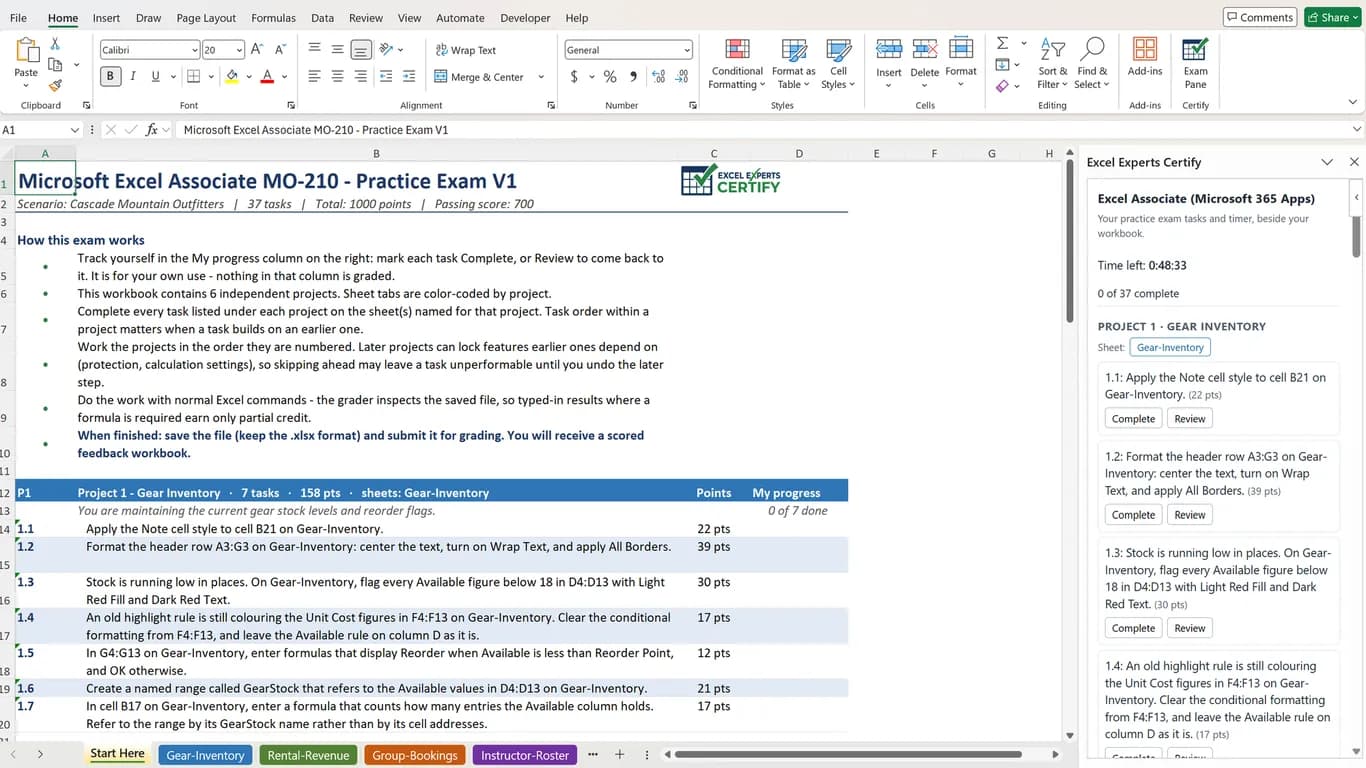
The Exam Pane puts your practice exam right beside your workbook, so you stop switching between Excel and the browser.
Every task
with its point value, in order
Your timer
counts down in timed attempts
Sheet buttons
jump to the sheet a project uses
Complete / Review
marks, with a filter for flagged tasks
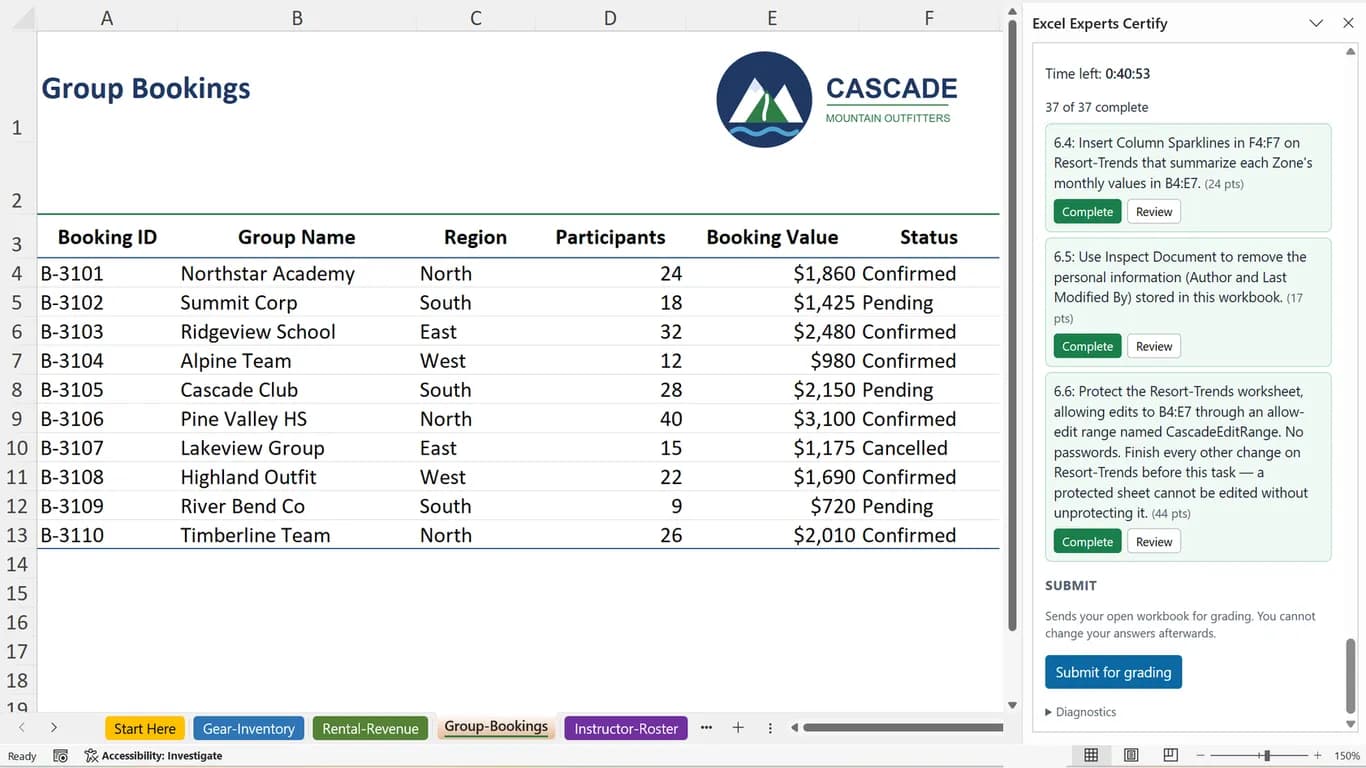
Submit from Excel
then open your scored results
Add it once (about a minute)
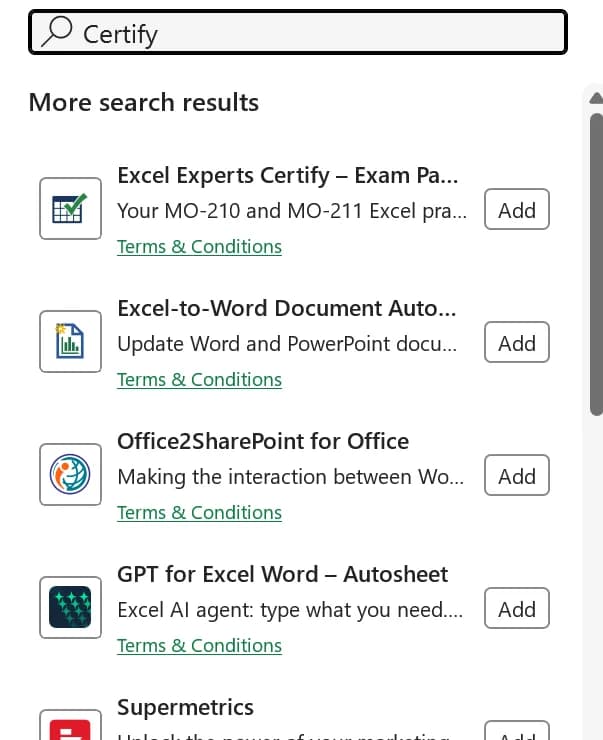
- Open Excel and go to Home > Add-ins.
- Search for Certify.
- Next to Excel Experts Certify – Exam Pane, select Add.
- An Exam Pane button appears at the right of your Home tab. It stays there for every exam.
Use it in an exam
- Start an exam and select Download starter, the same as always.
- Open the starter in Excel and click Exam Pane on the Home tab.
- Select Connect to my exam. The first time, a small window asks you to sign in. The pane then links itself to that exam.
- Work through the tasks. When you’re done, select Submit for grading in the pane. It sends the workbook you have open.
What you need
- Excel for Microsoft 365 on Windows (Version 2501 or later), Excel on Mac (16.103 or later), or Excel on the web
- The starter you downloaded from your exam page. The pane reads it to find your exam.
Excel 2019, 2021 and 2024 (one-time purchase) can’t install it. You can still take every exam: upload your workbook on the exam page instead.
Questions
- Do I have to use it?
- No. It's optional. Uploading your saved workbook on the exam page works exactly the same, and your score is the same either way.
- The pane says “This workbook is not linked to an exam”
- You opened a different workbook. Open the starter you downloaded from your exam page, or upload your work on the exam page instead.
- The pane says “We could not match this workbook”
- Sign in with the same account you used to download the starter, or download a fresh starter from your exam page.
- Can I close it?
- Yes. Your work is in the workbook, not the pane. Click Exam Pane on the Home tab to reopen it.